

Resolving SIM Connection Issues on Apple Devices (APN Configuration)
Install configuration profile on the Apple device
This guide applies to eSIMs and physical SIM cards inserted in the SIM slot of the Apple device (iPhone/iPad). When using an eSIM, ensure that the eSIM has already been activated on the device.
- Download the attached file required for your SIM card below in the article under Download configuration profile onto your device or transfer this file from another device (e.g. via email, Dropbox, etc.).
- Run the downloaded file.
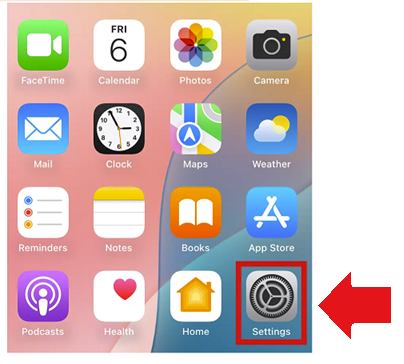
- Open the Settings on the device.
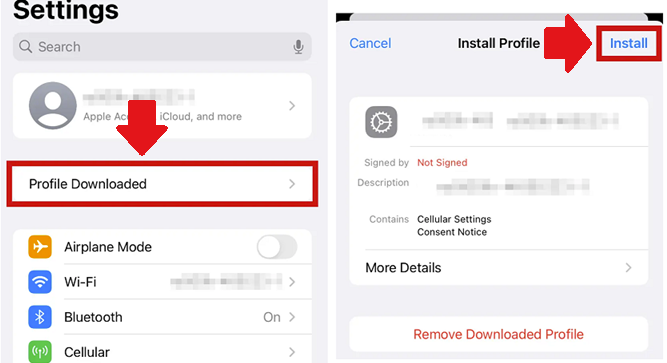
- Click on ‘Profile Downloaded‘ and ‘Install‘ and install the configuration profile (see screenshot).
- Please note that Roamit SIMs are roaming SIM cards. Therefore, Data Roaming must be enabled on the device (iPhone/iPad) in order to establish a mobile data connection.
- Please restart the device once; afterwards, depending on availability, the connection should be established immediately on the 4G/5G network.